
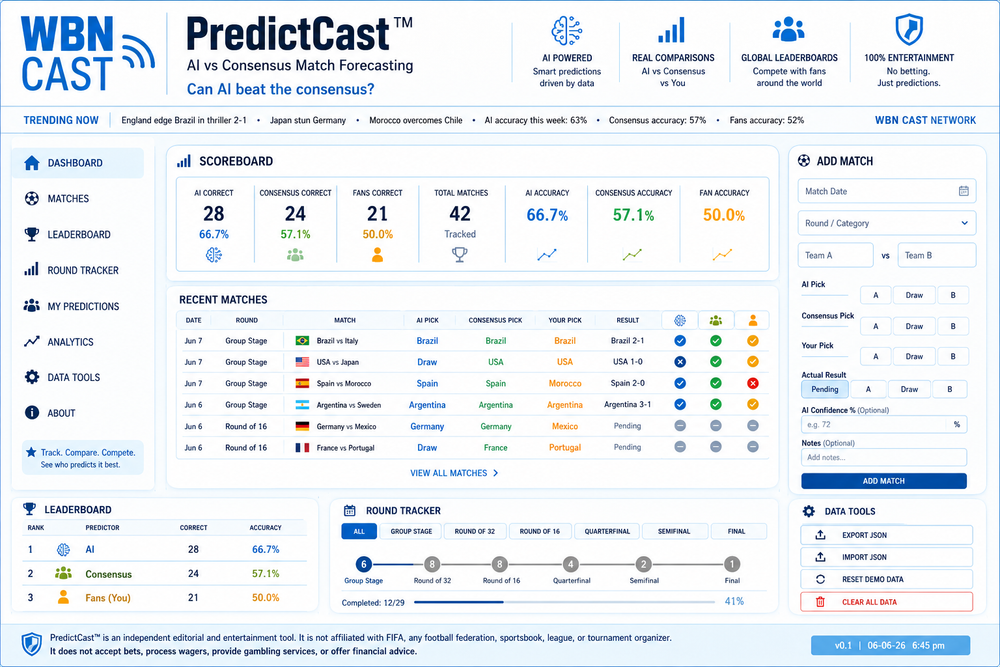
PredictCast™ is a WBN Labs initiative exploring how artificial intelligence can forecast events, measure probabilities, and challenge conventional wisdom through data-driven predictive intelligence
WBN News Corp Inc.™
PredictCast™
World Cup 2026 Edition
Can AI beat the consensus?
AI vs CONSENSUS
For entertainment and editorial purposes only. No betting, wagering, or financial advice.
PredictCast™:
World Cup 2026 is here — Track AI vs Consensus forecasts across all 104 matches · Group Stage underway · Can AI beat the crowd? · For entertainment only · No wagering.
Presented by
Sponsor
Sync: local
Live Scoreboard
0 Matches
Accuracy Race
Recent Matches
Match Log
0
Add New Match
Picks — update team names first
Leaderboard
Decided matches only
By Round
World Cup 2026 — Group Stage
48 Teams · 12 Groups
Data Tools
📤 Export JSON
Download all match data as JSON.
📥 Import JSON
Paste exported JSON to restore.
🔄 Reset Demo Data
Reload the built-in World Cup 2026 demo matches.
⚠ Danger Zone
Permanently delete all matches. Cannot be undone.
Admin Access
Enter password to access control panel.
Admin Control Panel
PredictCast™ Management
Ticker Message
Sponsor Button
JSONBin Sync — Live Data for All Browsers
One JSONBin account. One bin per cast. Every browser loads the same data automatically. Push after each edit session.
Sponsor Analytics
Edition Settings
Data Management
Danger Zone
Role Passwords
Super Admin Super
Admin
Editor
PredictCast™ is an independent editorial and entertainment tool. It is not affiliated with FIFA, any football federation, sportsbook, league, or tournament organizer. It does not accept bets, process wagers, provide gambling services, or offer financial advice. All match data and predictions are for editorial and entertainment purposes only.
PredictCast™ v0.2 | WBN Cast OS™ v0.4 | 06-06-26 PST | Style Guide v3.2
WBN News Corp Inc.™
PredictCast™ Academy
Operations Manual
Everything you need to run PredictCast™
PredictCast™ Academy:
Viewer · Management · Developer · Advertiser — Full Operations Manual · WBN Cast OS™ v0.4 · Style Guide v3.2 · For editorial and entertainment use only · No wagering.
Presented by
Sponsor
PredictCast™ Academy · Local
Welcome to PredictCast™ Academy
Operations Manual
About This Manual
Everything you need to run PredictCast™
PredictCast™ is a WBN Cast OS™ v0.4 application for tracking AI, Consensus, and Fan match forecasts against real results. This manual is the complete operational reference for everyone who touches the platform — from first-time viewers to the developers who built it.
Use the tabs above to navigate to your track. Each section is written for a specific audience and tells you exactly what you need to know — nothing more, nothing less.
Who This Manual Is For
👁 Viewer
Reading the cast
Understand the dashboard, picks, badges, and leaderboard. No login required.
⚙️ Management
Running the cast
Add matches, update results, manage the ticker, sponsor, and sync data live.
🛠 Developer
Building the cast
File structure, OS hooks, extending PredictCast, Ghost deployment, checklist.
📣 Advertiser
Sponsoring the cast
Sponsor bar setup, impression and click tracking, CSV reporting, sync.
Platform at a Glance
Cast Name
PredictCast™ — AI vs Consensus Match Forecasting
OS Version
WBN Cast OS™ v0.4 — Ghost-ready, JSONBin Sync, 3-role admin
Style Guide
v3.2 — Robin Blue palette, Oswald / Arial / Source Code Pro
Storage
localStorage per browser + JSONBin.io for live cross-browser sync
Deployment
Single HTML file — paste into any Ghost HTML card. No backend.
Purpose
Editorial and entertainment only. No betting, wagering, or financial advice.
Disclaimer: PredictCast™ is an independent editorial and entertainment tool. It is not affiliated with FIFA, any football federation, sportsbook, league, or tournament organizer. It does not accept bets, process wagers, provide gambling services, or offer financial advice.
Viewer Guide
No login required
For Viewers
How to read PredictCast™
PredictCast™ is a match forecasting tracker. Before every match, three forecasters — AI, Consensus, and Fans — each make a pick. After the match, the result is entered and the scoreboard updates automatically. Everything is for entertainment and editorial purposes only.
The Three Forecasters
🤖 AI Pick
The machine-generated prediction based on form, statistics, and historical data. Shown in orange throughout the platform.
📊 Consensus Pick
The aggregate view from analysts and public forecasters. A general-market benchmark. Shown in blue.
🙋 Fan Pick
The community vote or editorial fan forecast. Shown in amber.
✅ Actual Result
The real match outcome — Team A win, Team B win, or Draw. Shown in green once confirmed.
Status Badges
Each match card shows a badge for every forecaster once the result is in:
- ✓ Right (green) — The forecaster's pick matched the actual result.
- ✗ Wrong (red) — The forecaster's pick did not match the result.
- Pending (grey) — The match has not been played yet, or the result has not been entered.
The Dashboard Tab
- Scoreboard — Running totals of correct picks and accuracy % for AI, Consensus, and Fans.
- Accuracy Race — A visual probability bar comparing the three forecasters head-to-head.
- Recent Matches — The last three matches added, shown as cards with picks and badges.
The Matches Tab
- Shows all matches in the system, newest first.
- Use the filter pills at the top to narrow by round — Group Stage, Round of 32, Quarterfinal, etc.
- Each card shows the date, round, group, both teams, all three picks, the actual result, and status badges.
- An AI Confidence % chip appears when the editor has entered a confidence level for the AI pick.
The Leaderboard Tab
- Ranks AI, Consensus, and Fans by correct picks and accuracy %.
- Accuracy is calculated only from decided matches — pending matches are excluded.
- A breakdown by round shows performance in each stage of the tournament.
The Groups Tab
- Shows all 12 World Cup 2026 groups with their four teams.
- Each group card shows how many matches have been tracked in that group.
No account needed. Viewers never need to log in. All public data loads automatically on every page open. If JSONBin sync is configured, live data from the editor is pulled on every visit.
Management Guide
Admin login required
For Editors and Managers
Running PredictCast™ day to day
Management covers everything you do to keep the cast running — adding matches before kick-off, entering results after the final whistle, updating the ticker, managing the sponsor button, and syncing data live so every visitor sees the latest information.
1 — Logging In
- Open AdminScroll to the bottom of the PredictCast™ page and click the dark Open Admin button.
- Enter your passwordType your admin or editor password into the password field. Press Enter or click Login. The admin panel will open above.
- Your role determines your accessEditor — add and edit matches only. Admin — editor access plus marketing, sponsor, data, and sync. Super Admin — full access including changing passwords.
Default passwords: Change these immediately on first deploy. Super:
superadmin2026 · Admin: admin2026 · Editor: editor2026. Go to Admin → Permissions to update them.
2 — Adding a Match
- Go to the Add Match tabClick the ➕ Add Match tab in the main navigation.
- Enter the match date and roundSelect the date from the date picker. Choose the round from the dropdown — Group Stage, Round of 32, Quarterfinal, Semifinal, or Final. Optionally select the group (Group A through L).
- Enter Team A and Team BType the team names exactly as you want them to appear. The pick dropdowns below will update automatically with these names plus a Draw option.
- Make the three picksSelect AI Pick, Consensus Pick, and Fan Pick from their respective dropdowns. Each can be Team A, Team B, or Draw.
- Set the resultLeave as Pending before the match. Enter the actual result after the match is played.
- Add AI confidence and notes (optional)Enter a confidence % for the AI pick (1–100). Add any context — lineups, conditions, injuries — in the notes field.
- SaveClick Save Match. The match appears immediately in the Matches tab and Dashboard. Push to JSONBin to sync it live for all visitors.
3 — Updating a Result
- Find the matchGo to the Matches tab. Use the filter pills to narrow by round if needed.
- Click EditClick the ✏ Edit button on the match card. The Add Match form will open pre-filled with the match data.
- Change the resultSelect the correct result from the Actual Result dropdown — Team A, Team B, or Draw.
- Save and pushClick Save Match. Then go to Admin → Marketing → Push Data Live to sync the updated result to all browsers.
4 — Managing the Ticker
- Open Admin → MarketingLog in and go to the Marketing tab in the admin panel.
- Edit the ticker messageType your new scrolling ticker message in the text area. Keep it punchy — results, upcoming matches, editorial callouts.
- Save TickerClick Save Ticker. The scrolling bar at the top of the page updates immediately. Push to sync across all browsers.
5 — Syncing Data Live (JSONBin)
JSONBin sync makes your edits visible to all visitors in real time. Without it, each browser only sees its own local data.
- Get your JSONBin Master KeyGo to jsonbin.io → free account → Account → API Keys → copy your Master Key.
- Enter it in Admin → Marketing → JSONBin SyncPaste the Master Key. Leave Bin ID blank on the first push.
- Click Save Config, then Push Data LiveOn first push, a new bin is created automatically. Copy the Bin ID shown in the confirmation message.
- Hardcode the Bin IDOpen the PredictCast™ HTML file. Find
DEFAULT_BIN_IDin the CAST CONFIG block at the top of the script. Paste the Bin ID there and re-upload to Ghost. - Push after every edit sessionEvery time you add matches or update results, click Push Data Live before closing the admin panel. All visitors will see the updated data on their next page load.
Daily workflow: Add matches before kick-off → Push. Enter results after the whistle → Push. Update the ticker with highlights → Push. That's it.
6 — Data Backup and Restore
- Download Data — Admin → Data → Download Data exports all matches as a JSON file to your device.
- Upload Data — Admin → Data → Upload Data restores from a previously exported JSON file.
- Tools tab — The public Tools tab also offers Export JSON, Copy JSON, Import JSON, Reset Demo, and Clear All.
- Back up before clearing. Clear All Data cannot be undone. Always download a backup first.
7 — Role Reference
| Role | Access | Default Password |
|---|---|---|
| Super | All tabs, change passwords, clear all data, full control. | superadmin2026 |
| Admin | Marketing, Sponsorship, Data, Sync. No permissions tab. | admin2026 |
| Editor | Add and edit matches via the front-end Add Match tab. | editor2026 |
Developer Guide
Technical reference
For Developers
Building and extending PredictCast™
PredictCast™ is a single-file HTML application built on WBN Cast OS™ v0.4. It runs entirely in the browser — no server, no build step, no framework. Everything is plain HTML, CSS, and vanilla JavaScript wrapped in a single IIFE.
File Structure
predictcast-v02.html
│
├── <style> // All CSS — WBN Style Tokens v3.2 + cast-specific
│ ├── Style Tokens // CSS custom properties — do not override Robin Blue
│ ├── OS Components // Shell, masthead, tabs, panels, buttons, badges
│ └── Cast CSS // PredictCast-specific — match cards, metric grid, etc.
│
├── <div id="wbn-cast-os"> // Root wrapper — all CSS scoped to this ID
│ ├── .os-shell // Outer gradient shell
│ ├── .os-masthead // Brand + tagline
│ ├── .os-ticker-wrap // Scrolling ticker bar
│ ├── .os-sponsor-bar // Sponsor button
│ ├── .os-cast-tabs // Front navigation tabs
│ ├── .os-section-panel // Tab content panels (active class toggles visibility)
│ ├── #osAdminWrap // Full OS admin panel (hidden by default)
│ └── .os-footer // Version stamp
│
└── <script>
├── CAST CONFIG // Edit this block for each deployment
├── UTILITIES // esc(), el(), uid(), fmtDate()
├── EDITION/SPONSOR/TICKER
├── ROLES/AUTH
├── SYNC ENGINE // JSONBin push/pull (OS v0.4 Module 1.9)
├── MATCH DATA // DEMO_MATCHES, WC_GROUPS, loadMatches(), saveMatches()
├── STATS // calcStats() — accuracy calculations
├── RENDER // renderDashboard(), renderMatches(), renderLeaderboard(), renderGroups()
├── FORM // updatePickOpts(), clearForm(), saveMatch(), editMatch(), deleteMatch()
├── NAVIGATION // switchTab(), initFrontTabs(), initAdminTabs()
├── EVENT DELEGATION // Single document.addEventListener('click') — no inline onclick
└── INIT // init() — entry point
CAST CONFIG Block
The first thing to edit for any new deployment. Located at the top of the
<script> tag:
var CAST_CONFIG = {
CAST_TYPE : 'PredictCast', // Internal cast identifier
CAST_VERSION : 'v0.2', // Cast version number
DEFAULT_BIN_ID : '', // Paste JSONBin Bin ID here after first push
PASS_SUPER : 'superadmin2026', // Change on first deploy
PASS_ADMIN : 'admin2026', // Change on first deploy
PASS_EDITOR : 'editor2026', // Change on first deploy
EDITION_NAME : 'World Cup 2026',
EDITION_TAGLINE : 'Can AI beat the consensus?',
EDITION_TICKER : 'Your ticker message here…'
};
Ghost Compatibility Rules — All 8 Required
| # | Rule | How PredictCast implements it |
|---|---|---|
| 1 | IIFE wrapping | All JS inside (function(){ 'use strict'; ... })(); |
| 2 | No inline onclick= | Single document.addEventListener('click') with e.target.closest() delegation. |
| 3 | Self-contained | All CSS scoped to #wbn-cast-os. No bleed. |
| 4 | localStorage | All reads/writes in try/catch. Namespaced with wbn_pc_ prefix. |
| 5 | Admin access pattern | 3-role system (super/admin/editor). Login state to localStorage. Enter key bound via keydown listener. |
| 6 | Sponsor bar | Present on every page load. Impressions recorded in applySponsor(). Clicks tracked in event delegation. |
| 7 | Version stamp | Source Code Pro · 11px · right-aligned · color: var(--muted). In .os-footer. |
| 8 | Responsive | Single column on mobile. Grids collapse at 760px. No horizontal scroll. |
Style Tokens — Do Not Override
Robin Blue tokens are locked per Style Guide v3.2. Only use
--cast-hot and --cast-cold for cast-specific accents.
/* ✓ Correct — use cast accent slots */
--cast-hot: #d85a30; /* AI pick colour */
--cast-cold: #185fa5; /* Consensus colour */
/* ✗ Wrong — do not override Robin Blue */
/* --robin: #ff0000; ← never do this */
/* ✗ Wrong — retired status colours (v3.1) */
/* #1f9d63 · #e6a23c · #d9534f ← retired, fail contrast */
Adding a New Front Tab
- Add the tab buttonIn
#osCastTabNav, add:<button class="os-cast-tab" data-tab="sec-mynewtab">My Tab</button> - Add the panelAfter the existing section panels, add:
<div class="os-section-panel" id="sec-mynewtab">…content…</div> - Navigation is automaticThe
switchTab()function andinitFrontTabs()handle all tab switching via thedata-tabattribute. No extra JS needed.
localStorage Keys Reference
| Key | Contains |
|---|---|
predictcast_v2_matches | Array of all match objects (JSON) |
wbn_os_edition | Edition name and tagline |
wbn_sponsor | Sponsor label, URL, impressions, clicks |
wbn_ticker | Current ticker message string |
wbn_pc_roles | Hashed role passwords |
wbn_sync_config | JSONBin Master Key and Bin ID |
wbn_pc_adminopen | Boolean — restore admin session on reload |
Match Object Schema
{
id : "id_abc123", // uid() generated
date : "2026-06-11", // ISO date string
round : "Group Stage", // Round / category
group : "Group A", // Optional group label
teamA : "Mexico", // Team A name
teamB : "South Africa", // Team B name
aiPick : "Mexico", // "teamA name" | "teamB name" | "Draw"
conPick: "Mexico", // Same options
fanPick: "Mexico", // Same options
result : "Pending", // "Pending" | teamA | teamB | "Draw"
conf : 71, // AI confidence % (integer, optional)
notes : "Context notes" // Optional string
}
Deployment Checklist
- Edit CAST CONFIG — set passwords, edition name, tagline, ticker.
- Upload file to Ghost HTML card.
- Log in as Super Admin → Admin → Marketing → enter Master Key → Push Data Live.
- Copy Bin ID from confirmation message → paste into
DEFAULT_BIN_IDin CAST CONFIG. - Click Make Bin Public to allow all visitors to pull data.
- Re-upload updated file to Ghost.
- Test: open in a second browser — data should load automatically.
- Change all three role passwords via Admin → Permissions.
- Verify sponsor bar loads and clicks track correctly.
- Verify version stamp is correct in the footer.
Advertiser Guide
Sponsor reference
For Advertisers and Sponsors
Sponsoring PredictCast™
PredictCast™ includes a built-in sponsor bar on every page load. The sponsor button is fully editable by management, tracked automatically, and exportable as a CSV report. This section explains what you get, how to set it up, and how to read your performance data.
What the Sponsor Placement Includes
Placement
Sponsor Bar
Appears at the top of every page load, below the ticker and above the main navigation.
Format
Button + Label
A customisable button with your brand name and a direct link to your destination URL.
Impressions
Auto-tracked
Every page load records one impression. Cumulative total stored in localStorage and JSONBin.
Clicks
Auto-tracked
Every click on the sponsor button is recorded. CTR is calculated from impressions and clicks.
Setting Up Your Sponsorship
Sponsorship is configured by the PredictCast™ management team in the Admin panel. Provide the following to your contact at WBN:
- Button Label — the text that appears on the sponsor button. Example: Powered by Acme Corp or simply your brand name.
- Destination URL — the full URL the button should link to. Must include https://
- Start date — when you want the sponsorship to go live.
Note: PredictCast™ does not accept gambling, wagering, sportsbook, or betting-related sponsorships. The platform is for editorial and entertainment purposes only.
How Management Activates Your Sponsorship
- Admin logs inManagement opens the Admin panel using their admin or super admin password.
- Goes to Admin → Marketing → Sponsor ButtonEnters your button label and destination URL in the two fields provided.
- Clicks Save SponsorThe sponsor bar updates immediately. Impressions begin counting from this point.
- Pushes data liveManagement clicks Push Data Live in the JSONBin Sync section. Your sponsorship is now live for all visitors across all browsers.
Reading Your Performance Report
Your performance data is available under Admin → Sponsorship at any time.
| Metric | What it means |
|---|---|
| Impressions | Total number of page loads where the sponsor bar was displayed. One impression per page open per visitor. |
| Clicks | Total number of times a visitor clicked the sponsor button. |
| CTR | Click-through rate — clicks ÷ impressions × 100. Reported in the Sponsorship tab. |
| Label | The current button label displayed to all visitors. |
| URL | The current destination URL. |
Exporting Your Report
- Management opens Admin → SponsorshipThe current impression and click totals are shown in the analytics panel.
- Click Download Sponsor CSVA CSV file downloads to the device with label, URL, impressions, and clicks. Share this file with your advertiser as a performance report.
Important Notes for Advertisers
- Impression tracking is cumulative. Counts do not reset between sessions unless data is cleared by management. Request a reset date for clean campaign periods.
- Impressions are per page load. A visitor who opens the page three times in one day records three impressions.
- Clicks open in a new tab. The destination URL opens in a new browser tab so the visitor stays on the PredictCast™ page.
- No personal data is collected. PredictCast™ does not track visitor identities, IP addresses, or any personally identifiable information. Impression and click counts are anonymous aggregates.
- One sponsor at a time. The current platform supports one active sponsor placement. Contact WBN management to arrange scheduling if multiple sponsors are involved.
To get started: Contact your WBN management contact with your button label and destination URL. Sponsorships can be activated within minutes once the admin panel is updated and data is pushed live.
PredictCast™ Academy v0.1 | WBN Cast OS™ v0.4 | 06-06-26 PST | Style Guide v3.2